How to Schedule Posts on X
Learn how to schedule posts on X (formerly Twitter) and cross-post content across multiple social media platforms using PostSpread. This article walks you through the scheduling process, and how to maintain a consistent social media presence.
You know those moments when someone posts an unpopular opinion on X(formerly known as Twitter) and suddenly the entire platform has something to say about it?
One person starts a thread, another shares a personal experience, someone else disagrees, quotes the post, adds their own perspective, and before you know it, thousands of people are participating in the same conversation.
That's X.
Unlike platforms where people primarily share polished photos, videos, and carefully curated updates, X has a strong culture of conversations. People come here to share their thoughts, tell stories, rant about everyday experiences, discuss trending topics, debate, follow breaking news, and connect with people who share similar interests.
From business owners sharing lessons from running a company to professionals discussing their industries and creators sharing personal experiences, to Founders promoting their startup, there is almost always something happening on X. But here's the challenge: You may not always be online to publish every thought, update, or piece of content you want your audience to see.
You might have a busy workday, several accounts to manage, or content ideas you want to prepare ahead of time. That's where scheduling comes handy. Instead of waiting until the perfect moment to publish every post, you can prepare your content in advance and schedule it for a specific time.
In this article, we'll walk you through how to schedule posts on X and how PostSpread can help you manage your X publishing alongside other social media platforms.
Checkout PostSpread
Why Schedule Your Posts on X?
If you spend time on X, you already know how quickly conversations move. A discussion can start in the morning and become a trending topic before the end of the day. For creators, professionals, Founders and businesses, staying active can require a lot of effort. Scheduling helps you prepare content ahead of time without having to publish everything manually.
Here are some reasons to consider scheduling your posts.
-
Stay Consistent Without Being Online All Day You might have several ideas for posts but not always have the time to publish them. Scheduling allows you to prepare your thoughts, updates, and threads in advance. For example, you can prepare your professional insights for the week and schedule them to go out on different days.
-
Make Time for More Conversations: X is not just about publishing posts. It is also about responding to other people's opinions, joining discussions, replying to comments, and building relationships. When you schedule some of your content in advance, you have more time to participate in conversations rather than constantly thinking about what to post next.
-
Organize Your Content Ideas: You may want to share a personal experience on Monday, a professional tip on Tuesday, and an industry-related thread on Wednesday. A scheduling tool makes it easier to organize these ideas and distribute them throughout the week.
-
Manage Multiple Accounts Easily If you manage a personal account, your startup account, a business account, or several client accounts, switching between profiles to publish content can become repetitive. A scheduling platform can help you organize your publishing activities from one place.
How to Schedule Posts on X

There are different ways to schedule content on X. You can use X's own publishing tools or a third-party social media scheduling platform.
Let's look at the options.
Method 1: Schedule Posts Using X Pro X Pro provides scheduling features alongside its other account management tools.
Here is how to schedule a post using X Pro:
- Visit X Pro. and sign in with your X account.
- Select the account you want to publish from.
- Click the post composer.
- Write the content you want to share.
- Add an image or video if necessary.
- Select the scheduling option.
- Choose your preferred date and time.
- Confirm your schedule. Your post will be published at the selected time. You can also manage scheduled posts through a Scheduled column in X Pro.
Method 2: Use X Ads Composer X also documents a scheduling option through its Ads Composer.
To use this method:
- Visit X Ads.
- Sign in to your account.
- Navigate to the Composer section.
- Write your post and add any supported media.
- Click the dropdown arrow beside the Post button.
- Select your preferred date and time.
- Click Schedule. This is another way to prepare posts ahead of time. Note that X Ads has its own account and advertising access requirements.
Method 3: Use a Third-Party Scheduling Platform If you want to manage X alongside other social media platforms, a third-party scheduling tool may be more convenient. Instead of opening each social media account separately, you can use a central dashboard to prepare content and select where it should be published. This is particularly helpful for businesses, agencies, creators, and social media managers handling multiple accounts. One option worth exploring is PostSpread.
Try PostSpread for free:(https://postspread.com/)
How to Schedule Posts on X Using PostSpread
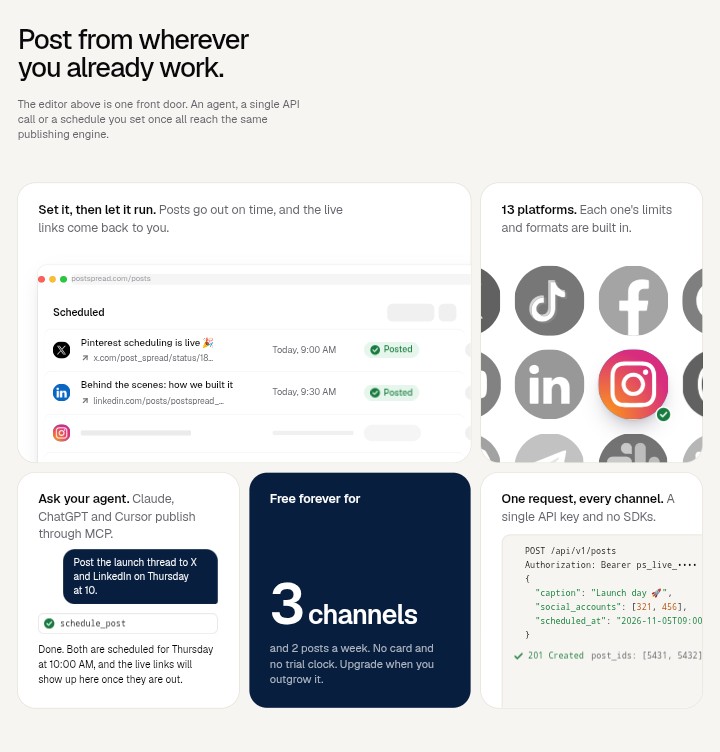
PostSpread is a social media scheduling and publishing platform that allows users to manage content across multiple social media channels. It supports platforms such as X, LinkedIn, Facebook, Instagram, Threads, TikTok, YouTube, Bluesky, Pinterest, Telegram, Mastodon, Discord, and Slack, etc
The idea is simple: rather than preparing and publishing every post separately, you can create content in one place and select the accounts where you want it published.
Here is how to get started: Step 1: Create a PostSpread Account Visit PostSpread and create an account. Once you have signed in, you can access the publishing dashboard and connect your social media accounts.
Step 2: Connect Your X Account Choose X from the available social media channels and follow the official account authorisation process. You will be redirected through X's authorization process to grant PostSpread permission to publish on your behalf. You do not need to share your X password directly with PostSpread. Important note: X publishing through PostSpread is available on its paid plans because** X** charges for API access.
Step 3: Create Your Content Open the PostSpread editor and write the post you want to publish. You can prepare a short update, share a professional opinion, add media, or create content for your audience. PostSpread also provides a preview so you can review how your content will appear on X before publishing.
Step 4: Select X as Your Publishing Channel Choose your connected X account as the destination for your post. If you manage other social media accounts, you can select additional channels where you want the content to appear. For example, a business announcement can be prepared once and scheduled for X and LinkedIn.
Step 5: Schedule Your Post
- After preparing your content, select the scheduling option.
- Choose the date and time you want your post to be published.
- Review your content, confirm your selected channels, and save the schedule.
- PostSpread handles the publishing process from its servers, so you do not need to keep the dashboard open for your scheduled content to go out.
Can You Schedule Threads on X Using PostSpread?
Yes. This is particularly useful because threads are an important part of how people communicate on X. A thread allows you to connect multiple posts to tell a longer story, explain an idea, share a detailed opinion, or break down a topic.
For example, instead of squeezing an entire business lesson into one short post, you can divide it into several connected posts. PostSpread supports advanced thread scheduling for X. This means you can prepare your thread in advance and schedule it rather than manually publishing each part when you are ready. For creators, Founders, professionals, and businesses that regularly share educational content, stories, and detailed industry discussions, this can make content planning easier.
How Does Cross-Posting to X Work With PostSpread?
Let's say you manage a business and want to announce a new service. You may want to share the announcement on X, LinkedIn, Facebook, and Threads. Without a cross-posting tool, you would have to open each platform, prepare the content, and publish it separately.
With PostSpread you can prepare the content in one editor and select the social media accounts you want to publish to. This is called cross-posting.
Here is an example:
- X: Share a short announcement and invite people to join the conversation.
- LinkedIn: Present the announcement in a more professional and detailed format.
- Facebook: Share the update with a broader community.
- Threads: Turn the announcement into a more conversational update.
You can use the same central idea while making adjustments to suit each platform. The advantage is that you can manage several publishing destinations without repeating the entire process for every account.
Best Practices for Scheduling Posts on X
Scheduling can make publishing easier, but you still need to be intentional about the content you share. Here are some practices to keep in mind.
- Mix Different Types of Content Don't make every post a promotional update. Give your audience different reasons to engage with your account. You can schedule:
- Personal experiences and stories.
- Industry insights and professional opinions.
- Educational threads.
- Questions that encourage discussions.
- Business announcements and updates.
- Relevant commentary on industry developments.
-
Don't Schedule Every Conversation One of the things that makes X interesting is its real-time conversations. While scheduling helps you maintain consistency, leave room for spontaneous posts, replies, and discussions. You don't want your account to look like it is only publishing automated updates.
-
Understand Your Audience's Active Hours Your audience may be located in different time zones. If you are targeting customers in the United States, for example, publishing times that work for your local audience may not necessarily work for them. Review your account analytics and experiment with different publishing times to understand when your audience is most responsive.
-
Review Your Scheduled Content Before scheduling, check your spelling, links, images, and publishing dates. This is particularly important when preparing content around breaking news, trending topics, or current events. A post that made sense when you wrote it may become irrelevant by the time it is published.
-
Keep Engaging With Your Audience Scheduling is not a replacement for engagement. Make time to reply to comments, respond to questions, participate in relevant discussions, and interact with other accounts. Remember that X is built around conversations, not just publishing.
Frequently Asked Questions About Scheduling Posts on X
-
Can I schedule posts on X for free? X offers scheduling through its publishing tools, including X Pro and the Ads Composer. Third-party tools may also offer free plans, although access to X publishing can require a paid subscription.
-
Does scheduling posts on X affect engagement? Scheduling itself does not automatically reduce engagement. The quality and relevance of your content, audience interest, and interactions remain important factors.
-
Can I schedule multiple posts on X at once? Yes. Scheduling platforms such as PostSpread allow you to prepare multiple posts and assign different publishing dates and times.
-
Can I schedule X threads in advance? Yes. PostSpreadsupports advanced thread scheduling, allowing you to prepare connected posts and schedule them ahead of time.
-
Can I publish the same post on X and LinkedIn? Yes. You can use PostSpread to select multiple social media channels for the same publishing task. However, it is advisable to adapt your wording to suit each platform's audience and content style.
-
Do I need to keep PostSpread open for scheduled posts to publish? No. PostSpread runs scheduled publishing on its servers, so you can close your browser or leave the dashboard after scheduling.
Use PostSpread for free:(https://postspread.com/)
In Conclusion, X moves quickly. There is always another conversation, another trending topic, another opinion, or another thread worth reading.
You want to be part of those conversations, but you also want to manage your time effectively. Scheduling helps you achieve both. You can prepare your content ahead of time, maintain a consistent publishing routine, and spend more time engaging with the people who follow you.
And if you manage multiple social media accounts, PostSpread makes the process even more convenient by bringing scheduling, thread publishing, and cross-posting into one platform. Instead of moving between different dashboards to publish the same content, you can manage your publishing activities from one place.
Ready to simplify how you publish on X and other social media platforms? Explore PostSpread see how it can fit into your content workflow.